
1. The big picture
Everything runs on one website and one database. Each person logs in with an e-mail and password; their role decides what they see.
/admin · Business app/operator · Business app⬇ all connected to the same T Booking website & database ⬇
| Role | Logs in at | Mobile app | Typical person |
|---|---|---|---|
| Super admin | /admin | T Booking Business | The owner of the booking website |
| Admin (and custom staff roles) | /admin | T Booking Business | Office staff, support, accounts |
| Operator | /operator | T Booking Business | A bus company, its manager, driver or conductor |
| Agent | /admin (limited) | T Booking Business | Ticket counter / travel agent who books for walk-in customers |
| Customer | /login → My account | T Booking | Passenger |
2. Super admin & admins
👑 Super admin
The account created by the installer. Can do everything and cannot be deleted or locked out by other admins. Only a super admin can make another user super admin.
Daily work
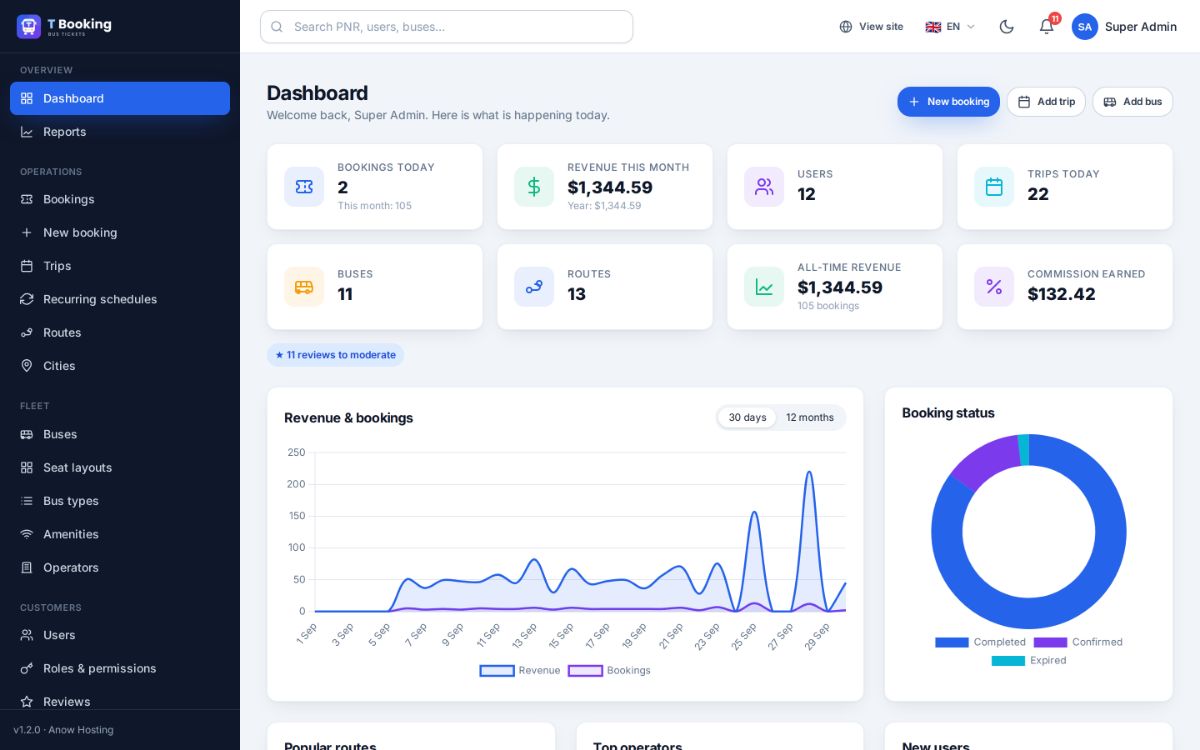
- Dashboard — bookings today, revenue, commission, trips, charts, popular routes and top operators.
- Operations — trips and recurring schedules, routes and stops, cities (import a whole country), manual bookings for phone customers.
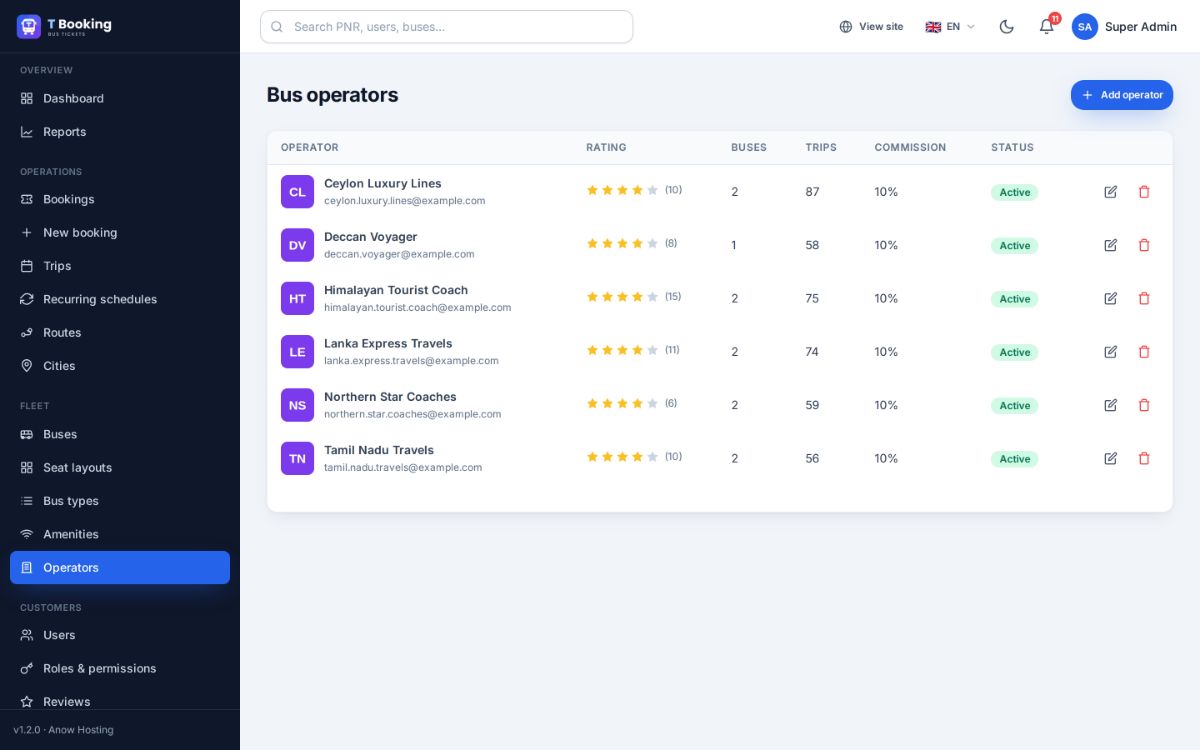
- Fleet — buses, bus types, amenities and the drag & drop seat layout designer; bus operators and their commission rate.
- Customers — users, roles & permissions, reviews, messages, newsletter.
- Finance — payments, refunds, wallets, commission and operator payouts; approve bank transfers.
- Content & marketing — pages, blog, FAQ, banners, offers and coupons, SEO.
- Settings & system — branding, payment gateways, e-mail/SMS, languages, currencies, security, backups, updates.
🛡️ Admin and custom staff roles
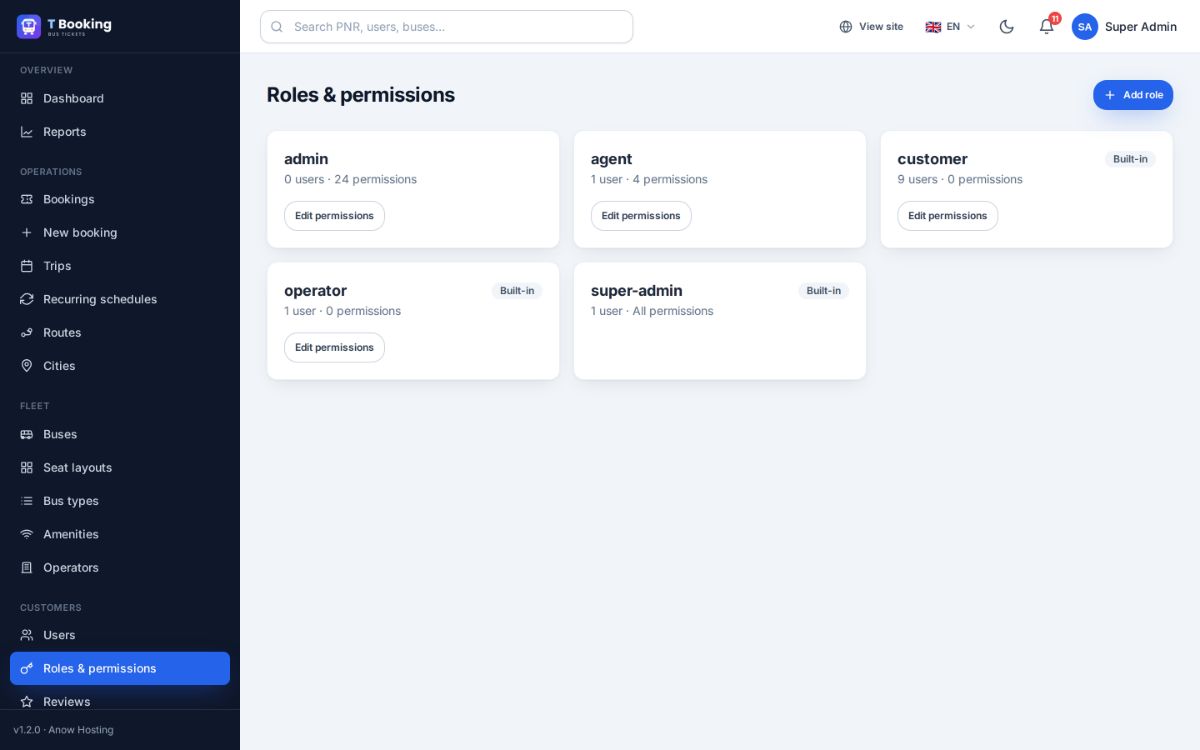
An admin has all permissions by default, but cannot change the super admin. For other staff create your own roles (e.g. “Support”, “Accounts”) in Admin → Roles & permissions and tick only what they need — the menu then shows only those pages, in the panel and in the Business app.
3. Bus operator
🚌 Operator — a bus company
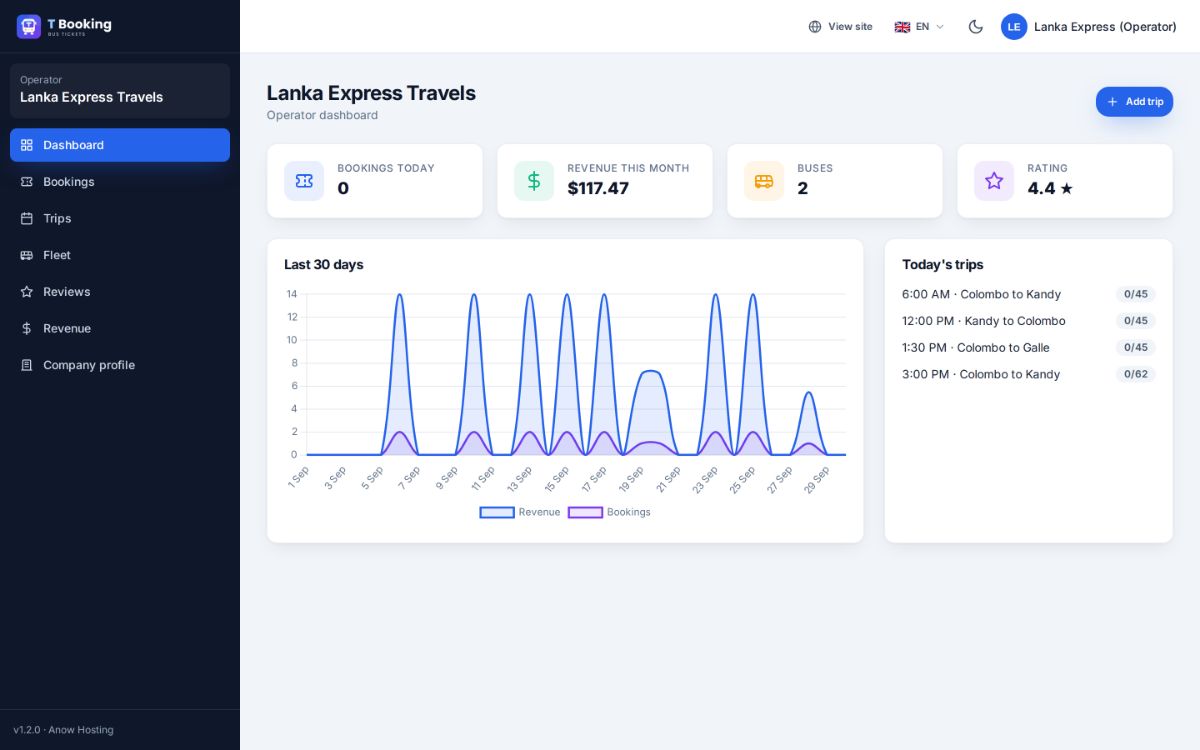
Every bus company gets its own operator panel at /operator and sees only its own buses, trips, bookings and money. The site owner earns a commission on each booking (per operator, set in Admin → Operators); the rest is paid out to the operator (Admin → Finance → Payouts).
In the operator panel
- Dashboard: bookings, revenue, rating, today's trips
- Fleet: view own buses (the admin adds buses and seat layouts)
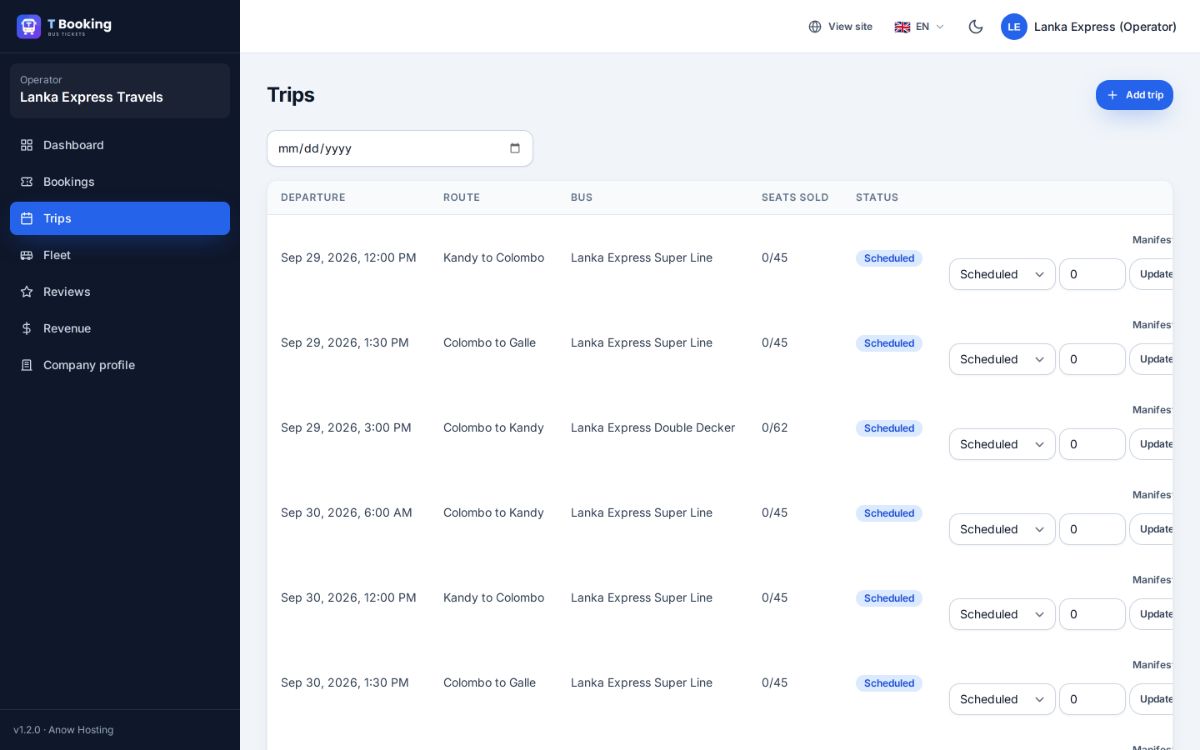
- Trips: create trips, change status (delayed, cancelled…), passenger manifest
- Bookings of their trips
- Reviews: read and reply
- Revenue and company profile
In the Business app (drivers & conductors)
- Today's trips, start / delay / complete a trip
- Passenger manifest with boarding ticks
- Scan QR tickets to check passengers in
- Share the bus GPS — passengers see the bus on the map
- Earnings
4. Agent
🧾 Agent — books tickets for walk-in customers
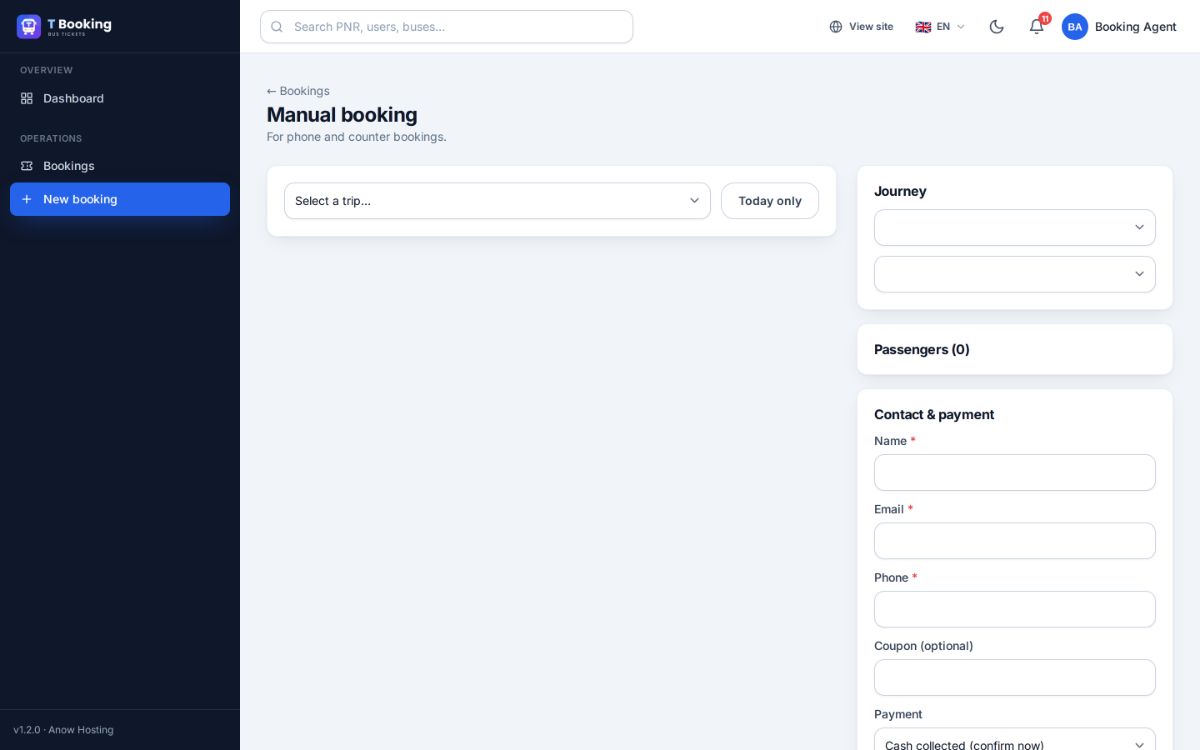
An agent works at a ticket counter or travel agency. They log in at /admin but see a short menu: Dashboard, Bookings and New booking. They book seats for a customer on any trip, take the payment at the counter and give the printed or e-mailed ticket. An agent sees only the bookings they made.
- New booking — choose the trip, pick the seats on the seat map, enter the passengers and the customer's contact details.
- Payment — choose Cash collected (confirmed at once), Bank transfer (awaiting approval) or Unpaid hold (24h). The customer receives the e-ticket with QR code.
- Bookings — find, print or resend their tickets later.
In the Business app an agent sees the trips and their bookings and can check passengers in with the QR scanner. What an agent may do can be changed in Admin → Roles & permissions → agent.
5. Customer (user)
🙋 Customer — the passenger
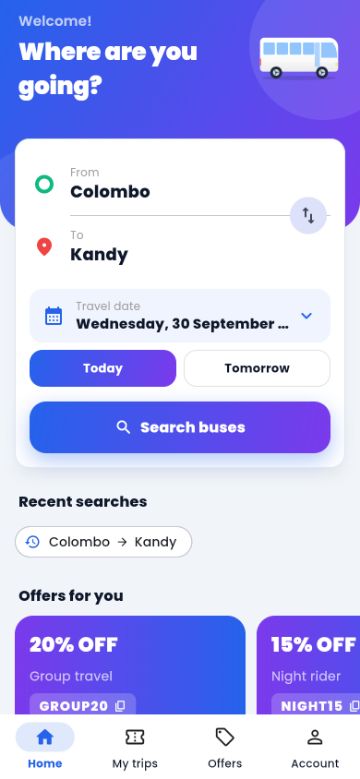
Customers book on the website or in the T Booking app. They can book as a guest (only e-mail and phone needed) or create an account — with Google or Apple sign-in in the app.
Booking
- Search from → to → date, filter and sort
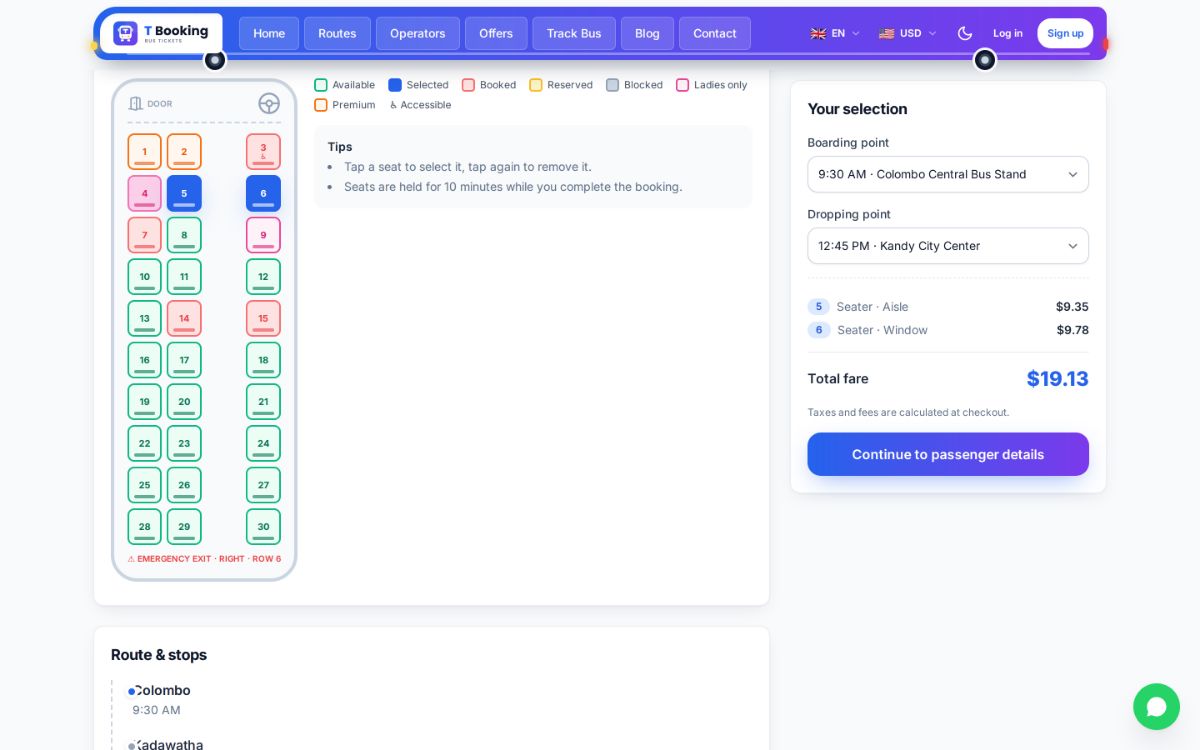
- Pick seats on the live seat map (booked and reserved seats cannot be chosen; ladies seats ask for confirmation)
- Enter passengers, apply a coupon, pay online or with the wallet
- Get the e-ticket with QR code by e-mail and in the app
My account
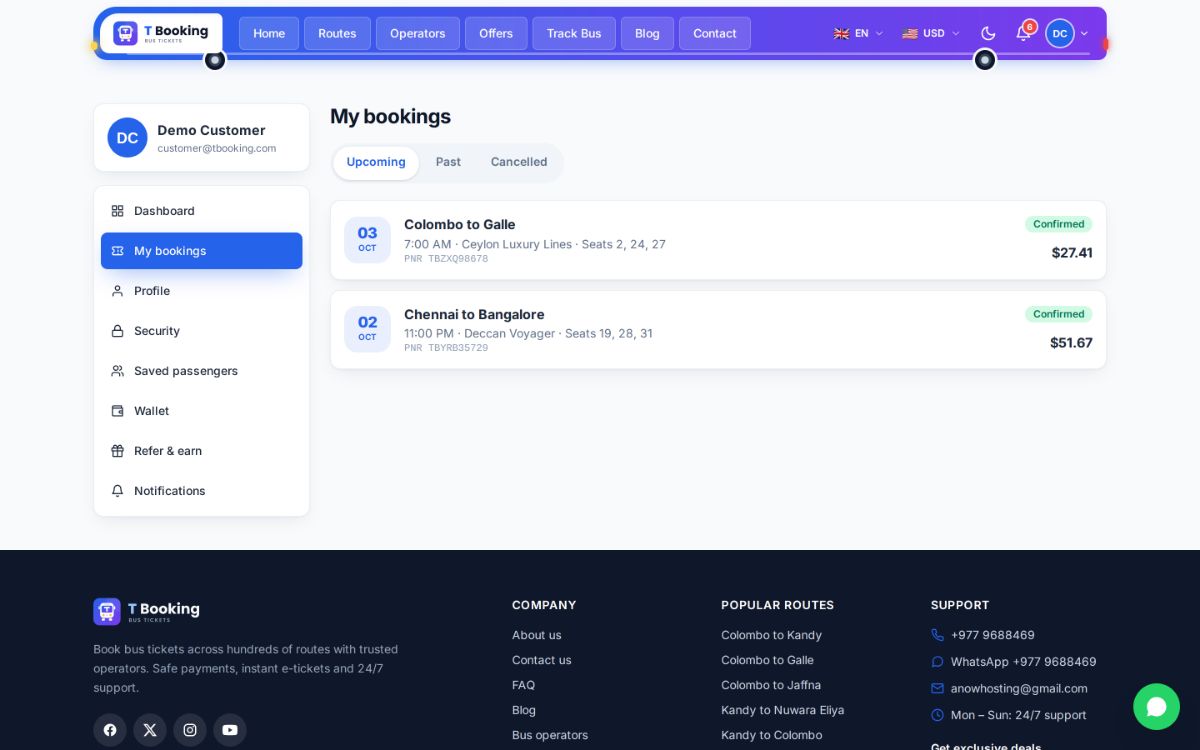
- My bookings: ticket PDF, cancel (refund to wallet), review
- Live bus tracking on the day of travel
- Saved passengers, wallet, refer & earn, notifications
- Profile, password, two-step login, delete account
6. Which mobile app for whom
🎫 T Booking passengers
For customers and guests. Anyone can install it from Google Play / the App Store.
🚌 T Booking Business staff
For super admins, admins, operators and agents. There is no sign-up — accounts are created in the admin panel. Each person sees only what their role allows.
T Booking (passenger app)
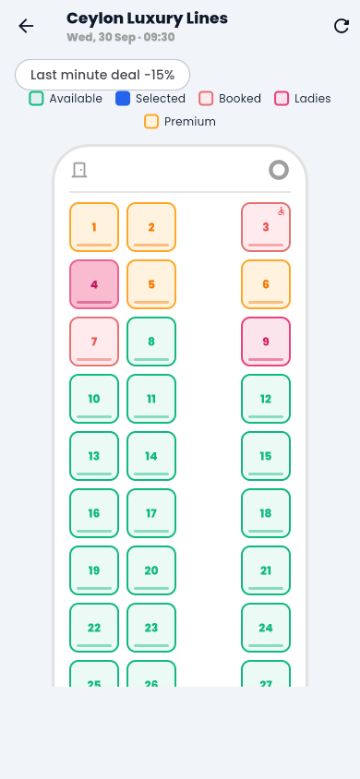
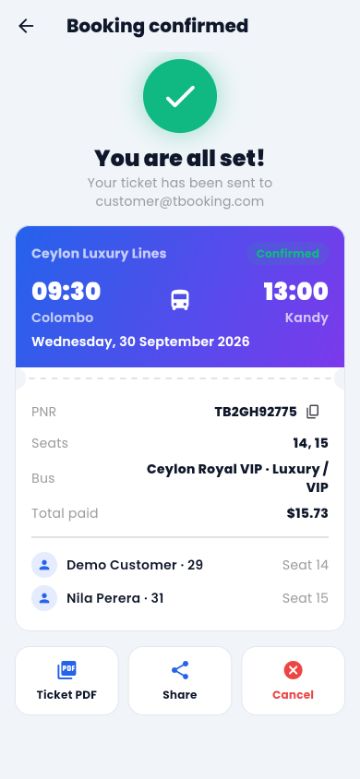
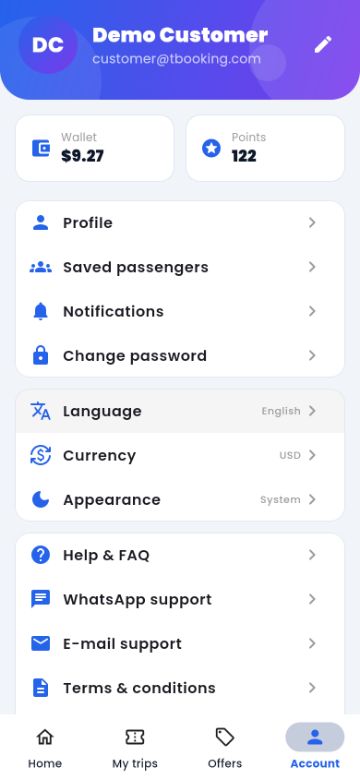
T Booking Business (staff app)
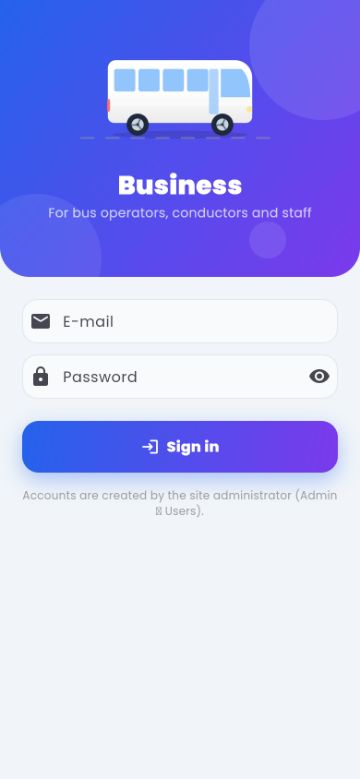
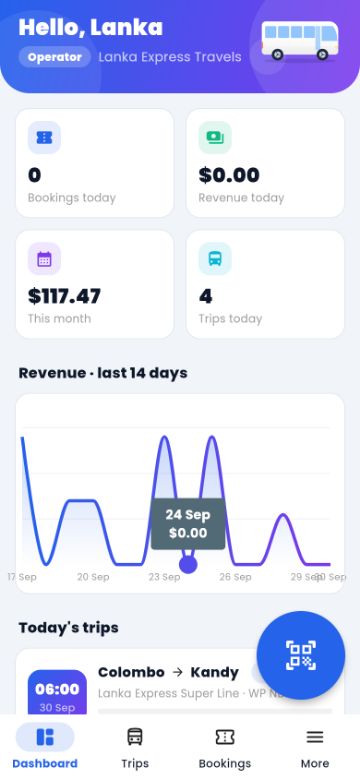
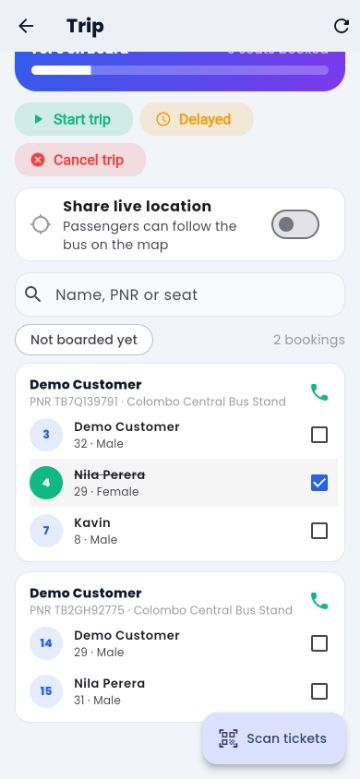
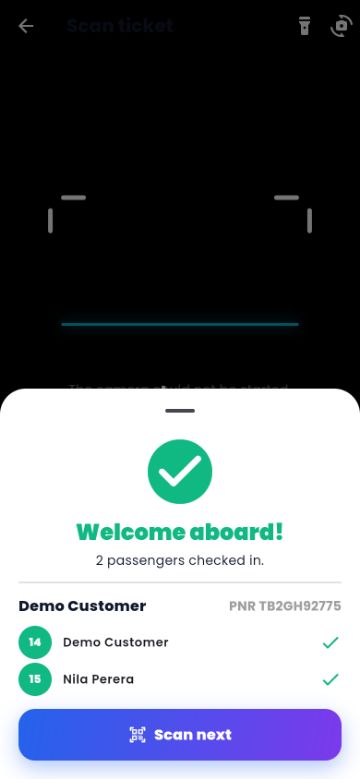
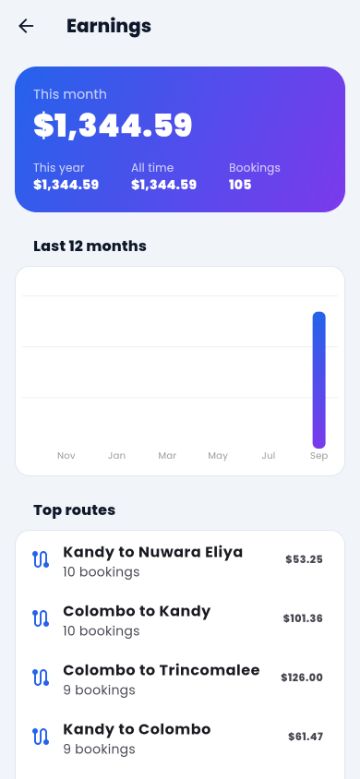
What each role sees in the Business app:
| Business app screen | Super admin / Admin | Operator | Agent |
|---|---|---|---|
| Dashboard & revenue chart | ✓ | ✓ own company | ✓ |
| Trips & passenger manifest | ✓ all operators | ✓ own trips | ✓ view |
| Start / delay / complete / cancel a trip | ✓ | ✓ | — |
| Scan QR tickets & board passengers | ✓ | ✓ | ✓ |
| Share bus GPS position | ✓ | ✓ | — |
| Bookings | ✓ all | ✓ own trips | ✓ own bookings |
| Approve payment, resend, cancel & refund | ✓ | — | — |
| Users (block / unblock) | ✓ | — | — |
| Earnings | ✓ | ✓ | — |
Admins with a custom role see exactly the screens their permissions allow (e.g. a role with only “View bookings” sees trips, bookings and the scanner).
7. A booking from start to finish
- 1 · PlanThe admin (or the operator) adds buses, routes and trips — once, or with recurring schedules.
- 2 · BookA customer books on the website or in the app — or an agent books at the counter. Seats are held while paying, so nobody else can take them.
- 3 · PayOnline payment confirms the booking at once. A bank transfer stays “awaiting payment” (the seats stay reserved) until an admin approves it.
- 4 · TicketThe customer gets the e-ticket with QR code by e-mail and in the app. The operator sees the passenger in the manifest.
- 5 · Travel dayThe conductor starts the trip in the Business app and shares the bus GPS; passengers track the bus live. At boarding the QR ticket is scanned.
- 6 · AfterThe trip is completed; the customer can leave a review, which the operator can answer. If a booking is cancelled, the refund follows the cancellation rules and goes to the customer's wallet (or by the original payment method).
- 7 · MoneyThe site owner keeps the commission; the operator's balance is paid out from Admin → Finance → Payouts.
8. Permissions at a glance
| Can… | Super admin | Admin | Operator | Agent | Customer |
|---|---|---|---|---|---|
| Book tickets | ✓ | ✓ | — | ✓ for customers | ✓ |
| See all bookings | ✓ | ✓ | own trips | own bookings | own bookings |
| Manage trips & schedules | ✓ | ✓ | trips of own buses | — | — |
| Buses & seat layouts | ✓ | ✓ | view own buses | — | — |
| Refunds, payouts, finance | ✓ | ✓ | own revenue | — | own wallet |
| Users, roles, operators | ✓ | ✓ (not super admin) | — | — | — |
| Settings, languages, currencies | ✓ | ✓ | — | — | — |
| Security, backups, updates | ✓ | ✓ | — | — | — |
Admin and agent permissions are the defaults and can be changed per role in Admin → Roles & permissions.
9. Creating accounts & custom roles
🚌 Operator
Admin → Operators → Add operator → fill in the company, and under Login an e-mail and password. That person logs in at /operator and in the Business app.
🧾 Agent / 🛡️ Staff
Admin → Users → Add user → choose the role agent, admin or your own role.
🙋 Customer
Customers sign up themselves (website or app), or you add them in Admin → Users with the role customer.
⚙️ Custom role
Admin → Roles & permissions → New role → tick the permissions → assign it to users.
After installing with demo data, change or delete the demo accounts (admin@, operator@, agent@, customer@tbooking.com) before going live.